
New Hire Welcome Email
Generate high-quality New Hire Welcome Email output with AI.
 gpt-4o-mini


Your prompt will appear here…
Your beautifully formatted article will appear here once you generate.
No history yet
Your generations will appear here. Sign in to save them permanently.
What is the first thing a new hire sees from you before day one? Often it is a welcome email, and a warm, well judged one calms nerves and builds excitement, while a cold or missing one leaves a fresh employee anxious. New Hire Welcome Email writes that message for you, so every person who joins feels expected, valued, and ready to start.
You give it the basics about the role and the person, and it drafts a friendly note that sets the right tone from the very first click.
Short answer: New Hire Welcome Email is a free AI tool that writes a warm, professional welcome message for a new employee, covering the greeting, first day details, and a friendly tone, so someone joining feels genuinely expected.
What is New Hire Welcome Email?
New Hire Welcome Email produces the message you send a new employee before or on their first day. It greets them, confirms the practical details, and sets an encouraging tone. You provide the specifics, and it turns them into a polished note that is ready to send.
The email is small but it matters. It is the first proof that your company is organised and glad they said yes. A thoughtful welcome starts the relationship on solid ground.
What a Good Welcome Email Includes
The best welcome emails do a few simple things well. They reassure, they inform, and they make the new person feel human, not processed.
Warm Greeting
Opens with genuine enthusiasm, so the new hire feels welcomed, not merely notified.
First Day Details
Confirms start time, place or link, and what to bring, removing day one guesswork.
A Friendly Face
Names who they will meet or report to, so a stranger becomes a contact.
Clear Next Step
Tells them exactly what to do before they arrive, with nothing left vague.
How Does New Hire Welcome Email Work?
Type the details into the prompt box: the person's name, their role, the start date, and anything you want them to know. Choose an AI model family, such as GPT, Claude, Gemini, Llama, or Mistral, then open the advanced options. Press Generate, and the email appears in the output card with a live word count and read time.
Copy it into your mail client, Share it with a colleague to check, Listen to it read back, or Download it as TXT, Word, or HTML. The activity history panel keeps past emails, so you can reuse a version you liked for the next hire.
| Option | What it controls | Suggested starting point |
|---|---|---|
| Tone | The feel of the message | Warm |
| Subject Line | The style of the subject | Personalized |
| Length | How long the email runs | Medium (100-200w) |
| Purpose | The job the email is doing | Introduction |
Toggles let you include a greeting, a signature, a P.S., or a call to action, and the Warmth slider nudges the tone friendlier or more formal. Custom Instructions handle extras, like naming a buddy or attaching a first week schedule.
Pro tip Set the Subject Line style to Personalized and include the person's name. A subject that speaks to them directly is far more likely to be opened before day one.
Getting the Timing and Details Right
A welcome email lands best when it arrives at the right moment with the right information. A few pointers help.
- Send it after the offer is signed but a few days before the start date.
- Confirm the practical details you know will be asked: time, place, and dress.
- Introduce one friendly contact the new hire can reach with questions.
- Keep it short enough to read on a phone in under a minute.
One honest limit: the tool writes the words, not the logistics. Double check that every date, link, and name in the draft is correct before you hit send.
EizTools is a free set of AI powered tools that run in your browser with no account. You choose a model family, generate a draft, and export it however you like. To organise everything that happens after the welcome, the employee onboarding checklist keeps the first weeks on track.
Frequently Asked Questions
When should I send a new hire welcome email?
Usually a few days before the start date, once the offer is signed. That gives the new person time to read it, prepare, and arrive on day one feeling expected rather than uncertain.
Can I set how formal the email sounds?
Yes. The Tone menu ranges from Formal to Warm, and the Warmth slider fine tunes it further, so the email matches your company culture, whether that is buttoned up or relaxed.
What should the email include?
A warm greeting, the first day details, a friendly contact, and one clear next step. Add specifics in Custom Instructions, such as a schedule or a buddy's name, and the draft weaves them in.
Is New Hire Welcome Email free?
Yes, it is free with no account required. Enter the details, pick a model family, choose your options, and generate a welcome email you can send in minutes.
A new hire's first impression of your company can start with one thoughtful email. Open the New Hire Welcome Email above, add the details, and send a welcome that sets the right tone. To handle the formal offer that comes before it, the offer letter draft tool has it covered.
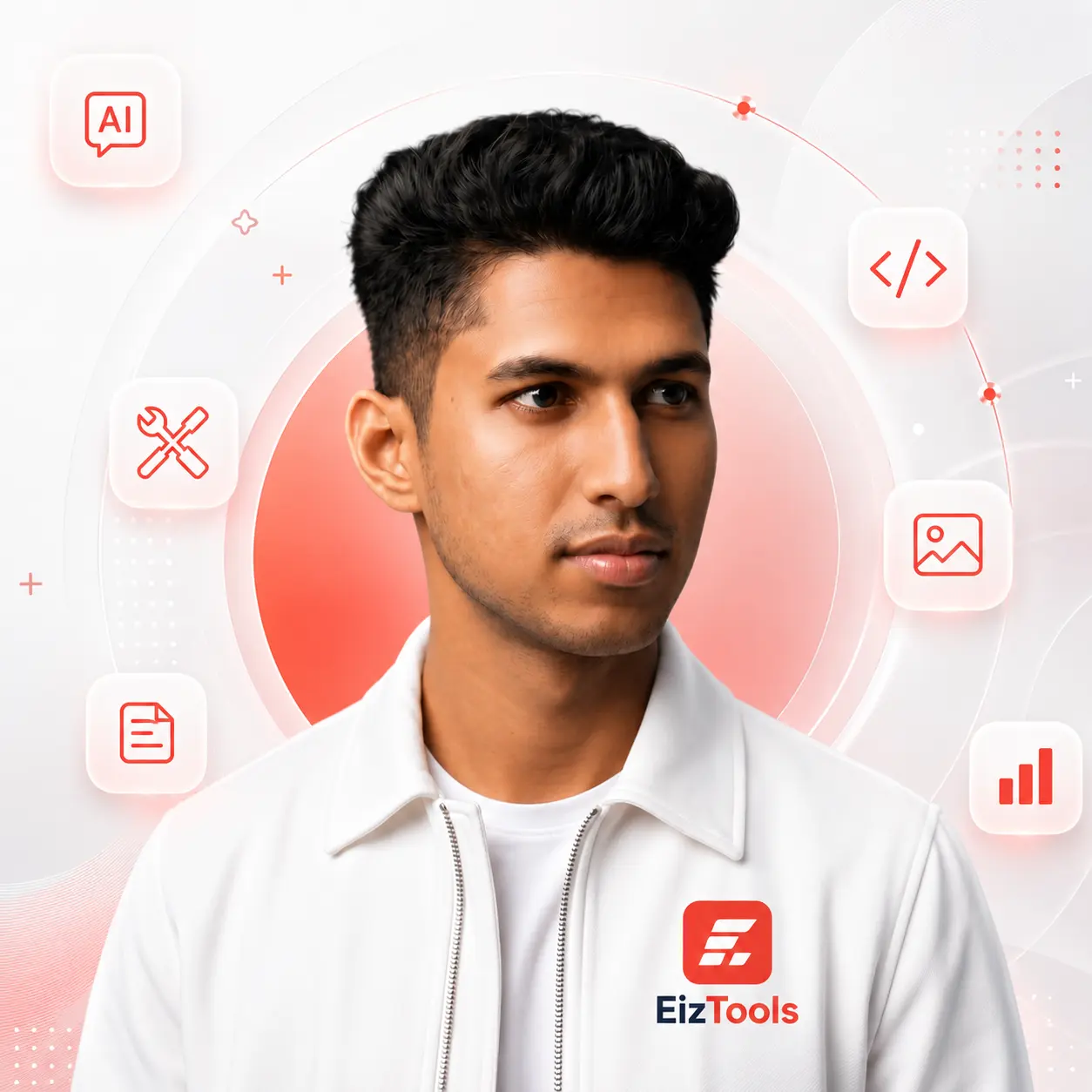
Sabir Bepari
Founder of EizTools and a passionate AI enthusiast dedicated to building practical, user-friendly AI tools that simplify everyday tasks.
Follow EizTools
New AI tools, practical tips and product updates — straight to your feed.